Part 7 of 8 · ← How does the trial phase work?
In a few steps you create an appointment in the admin panel – for a customer or for yourself during the trial phase. Where the results end up is covered in step 9 below.
Here as a video, below as screenshots:
Everything the pharmacy does happens here in the admin panel. You can reach it directly at anivahealth.com/de/admin.
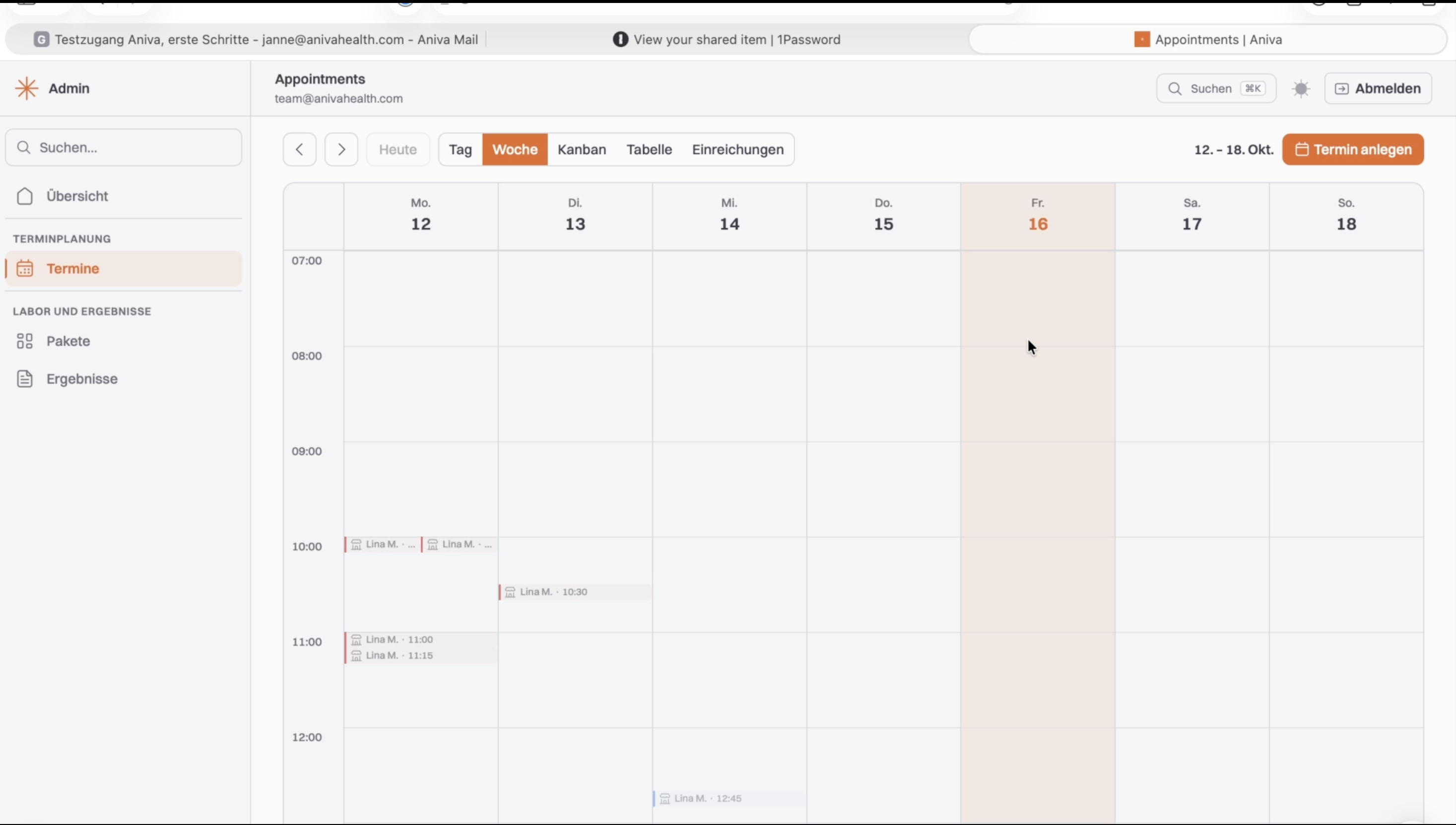
The start view under Appointments with your calendar. At the top you switch between day, week and the other views.
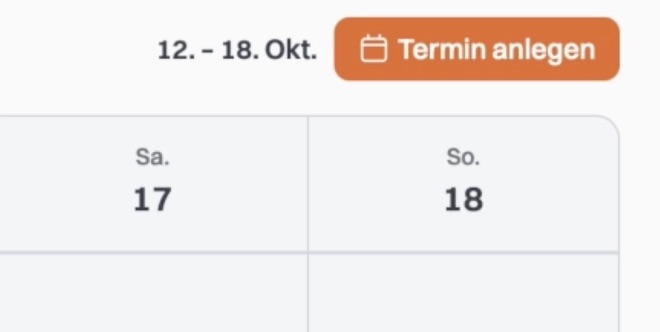
Click the button to create an appointment in the top right.
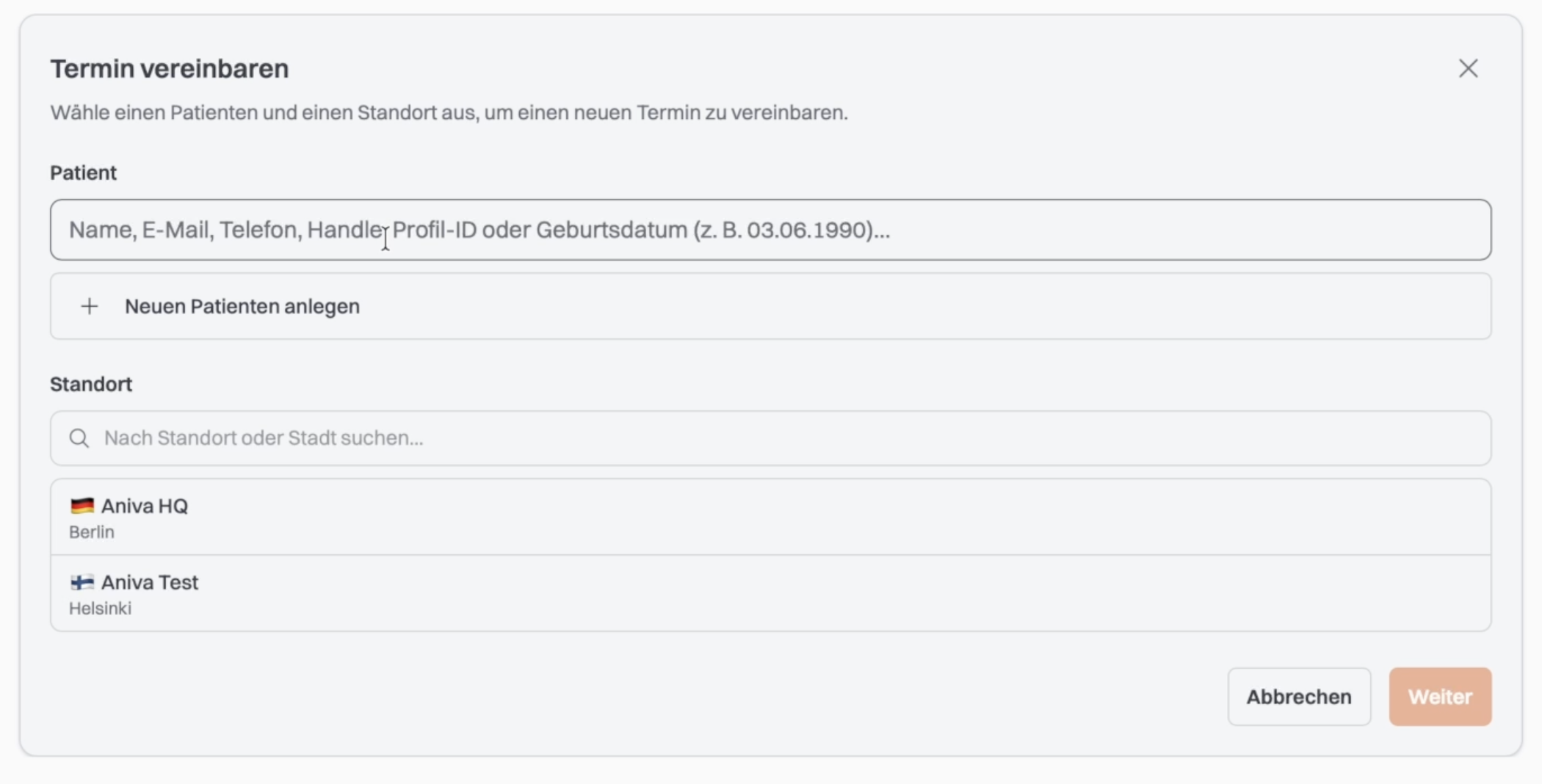
Search for the customer by name, email, phone or date of birth. If they aren't in the system yet, click the button to create a new patient.
This also applies when you run the test on yourself: always create a new patient. Your admin account is the login you work with here – it does not belong in the patient field.
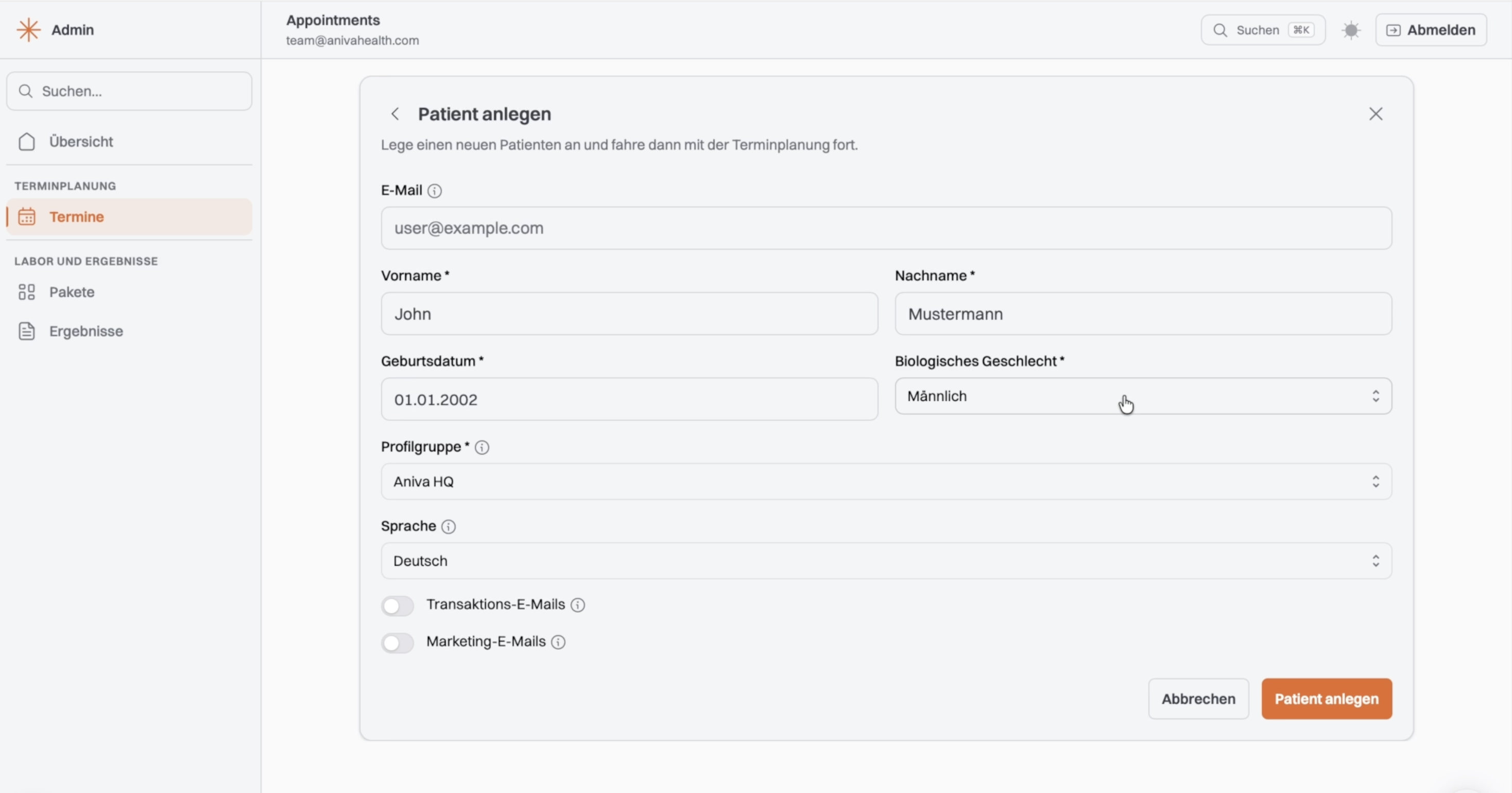
Enter the customer's details. Required fields are first name, last name, date of birth and biological sex. The profile group – your pharmacy – is already preselected. You only need the email address if the customer wants the report by email; the date of birth is then the password for the PDF. You can leave the switches for transactional and marketing emails off. Then create the patient.
Select your pharmacy as the location and click Next.
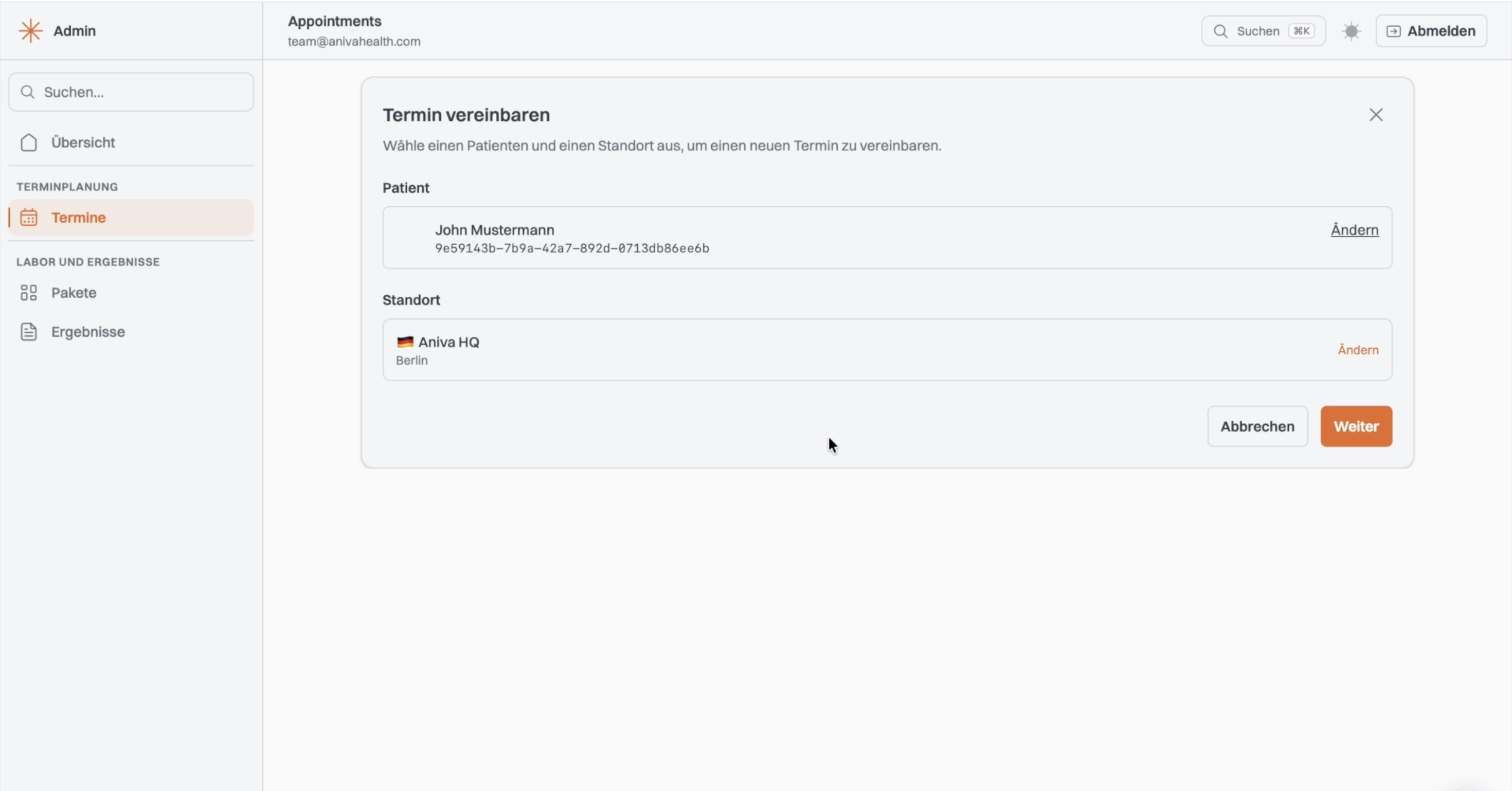
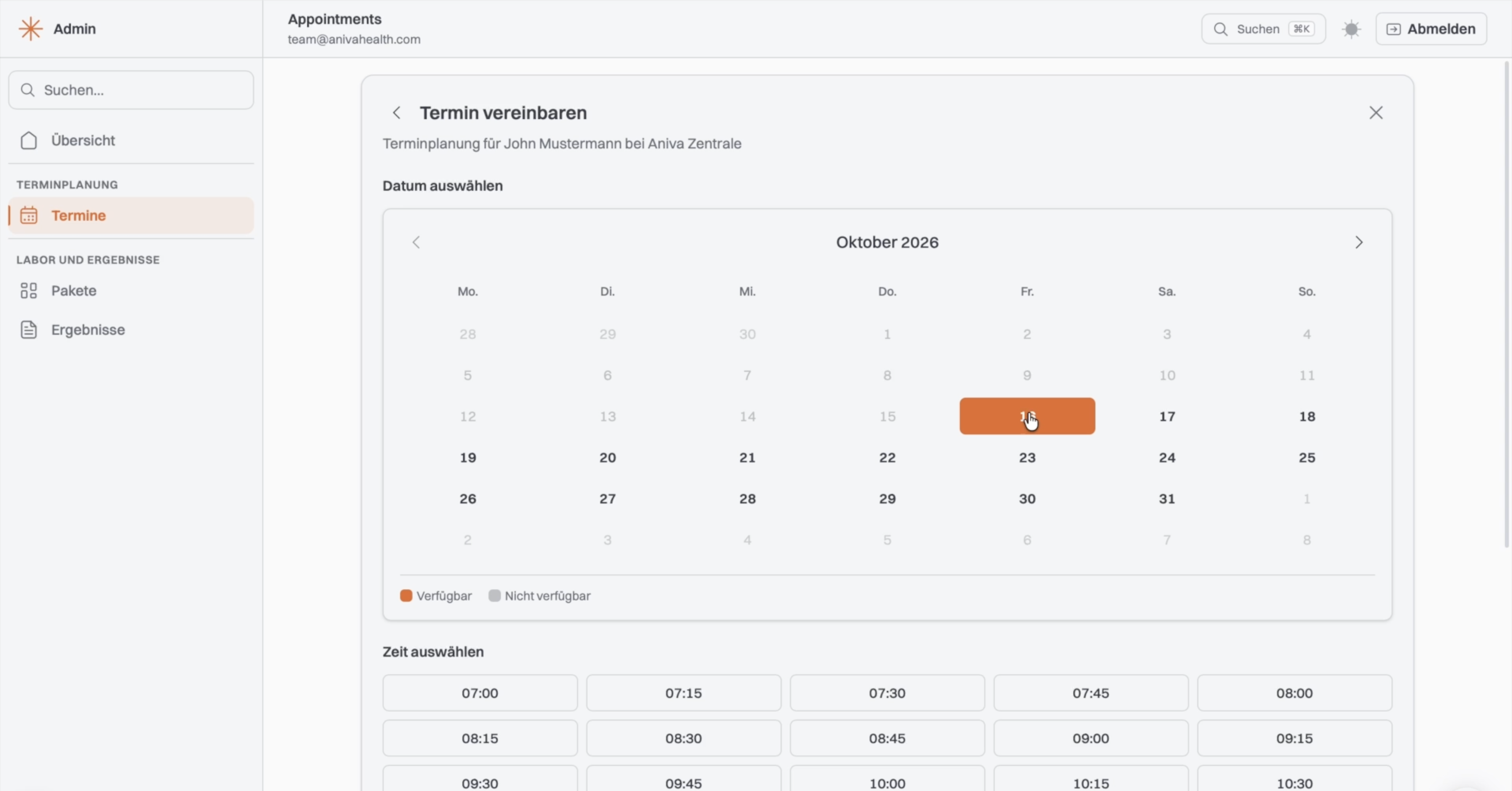
Choose date and time – this also works if the customer is already in the pharmacy.
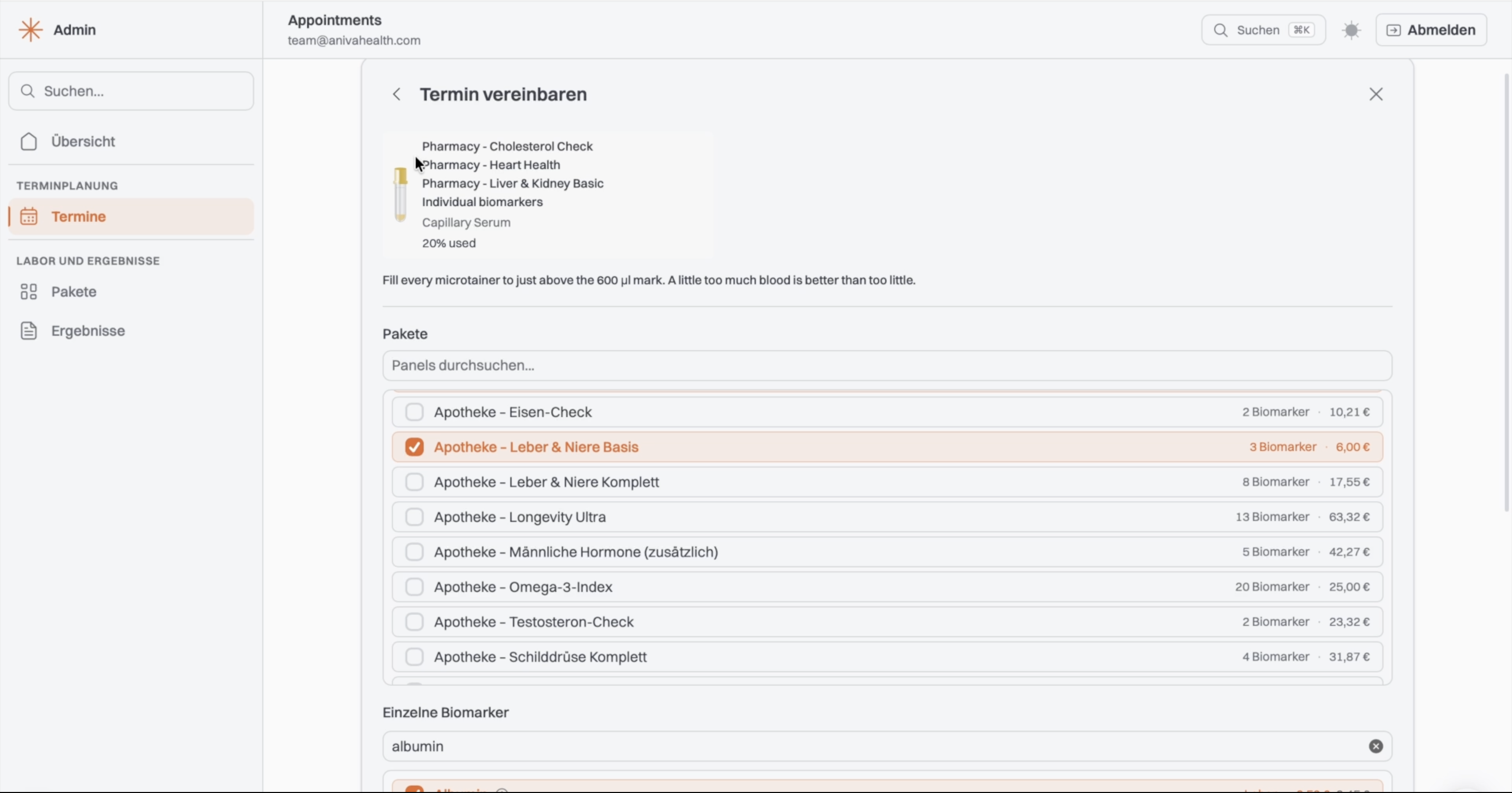
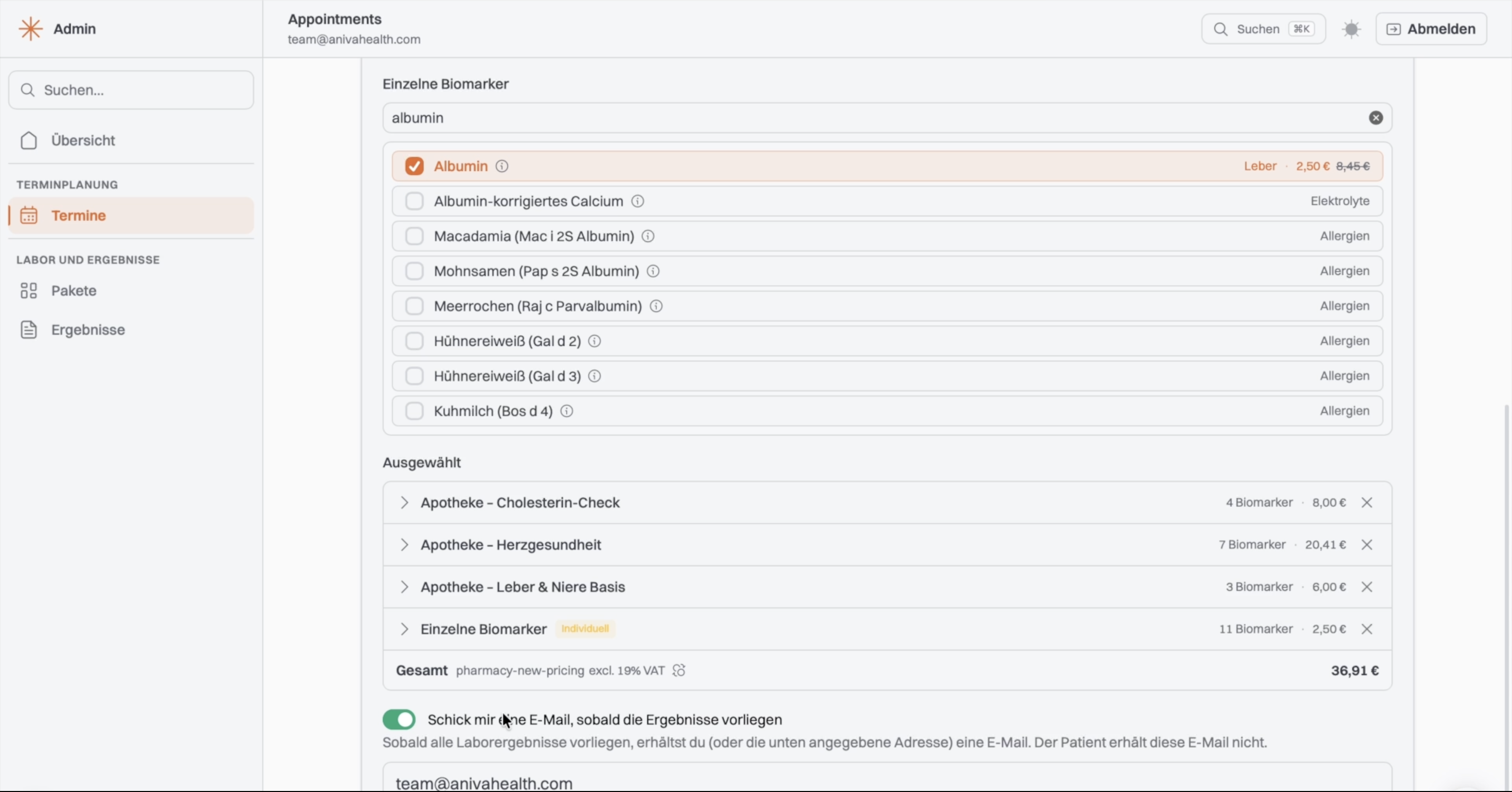
Select one or more panels. You can add individual values or book them without any panel at all. The selection at the bottom shows everything in the appointment.
At the top, the tube overview shows how many tubes the draw needs and how full each one will be, for example “20% used”. Several panels and individual values share one tube as long as it has room. If the overview shows two tubes, you really need two.
If you'd like us to let you know as soon as the report is ready, switch on the email notification for the results. It goes to you or to the address you enter below it – the customer doesn't receive it. Then complete the appointment.
Click the appointment in the calendar. Under lab codes there is one row per tube. Once the draw is done: scan the barcode or type in the six digits after the prefix 7642. The barcode comes pre-applied to the tube; you don't have to label anything. You can also add panels here afterwards using the “+”.
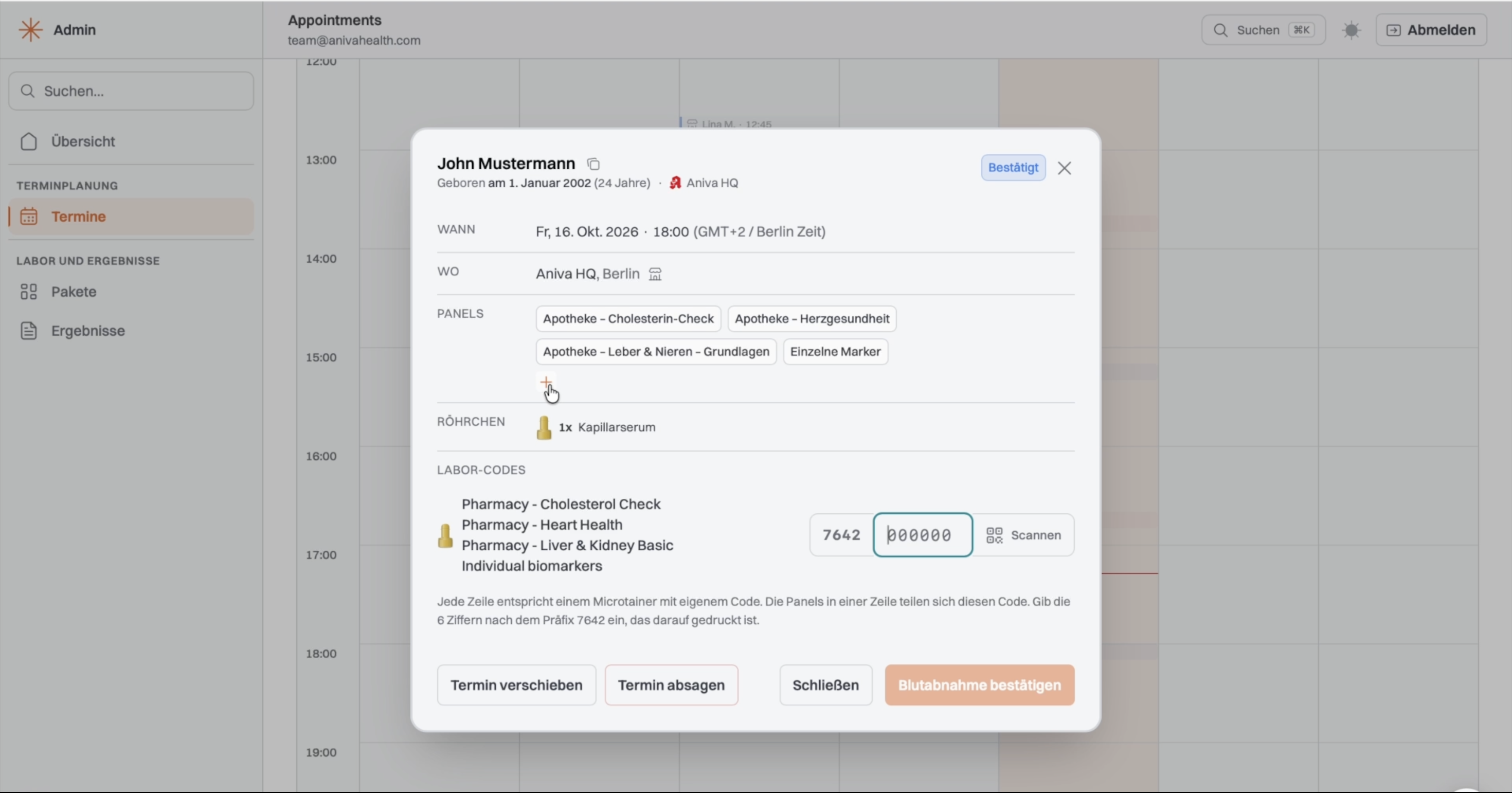
If a required patient detail is still missing, the admin panel asks for it now. Then confirm the blood draw. That tells us the sample is ready – we check every evening and have it collected on the next working day as standard.
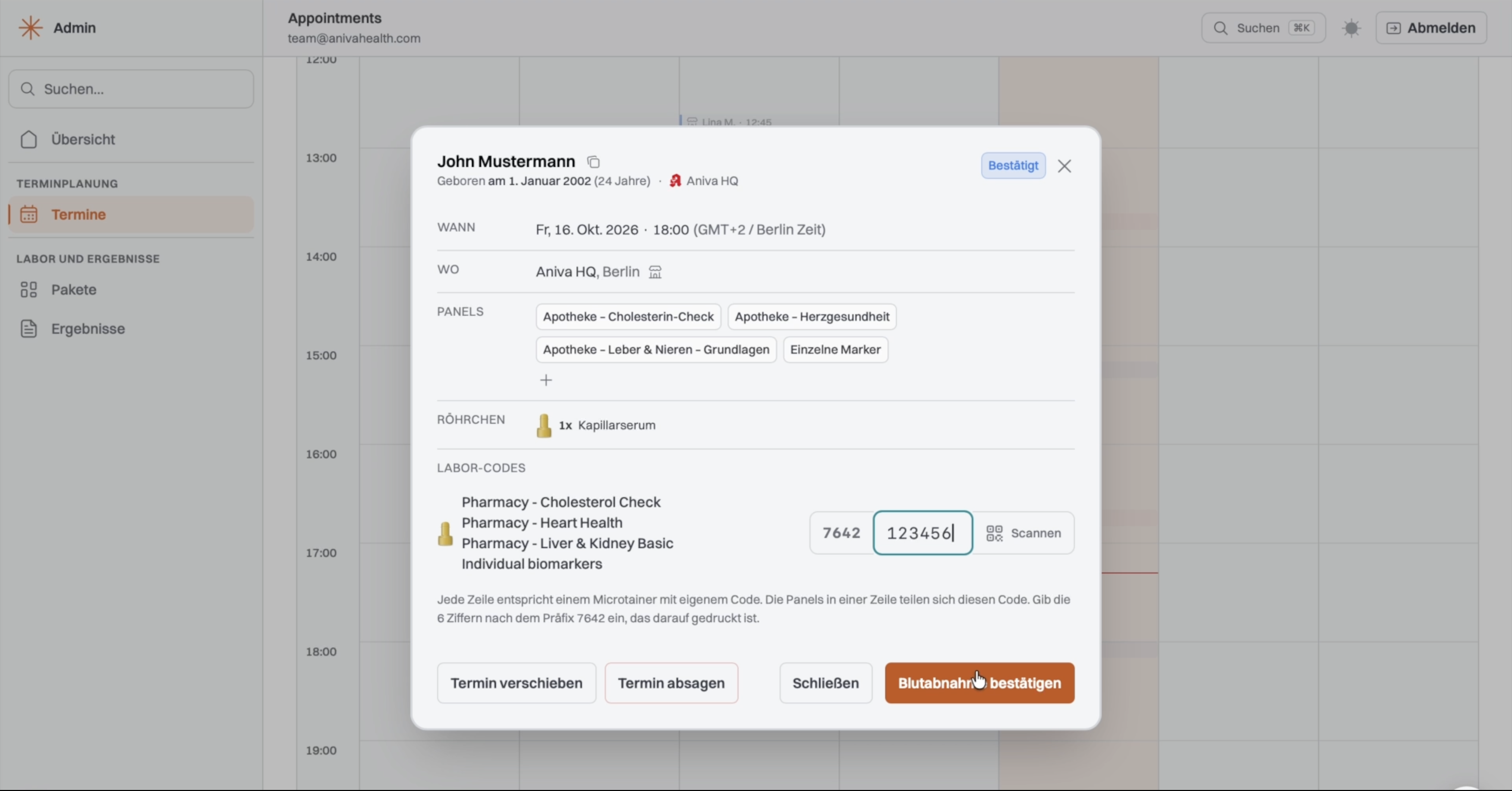
The appointment can only be confirmed on the day of the appointment – before that the button is greyed out.
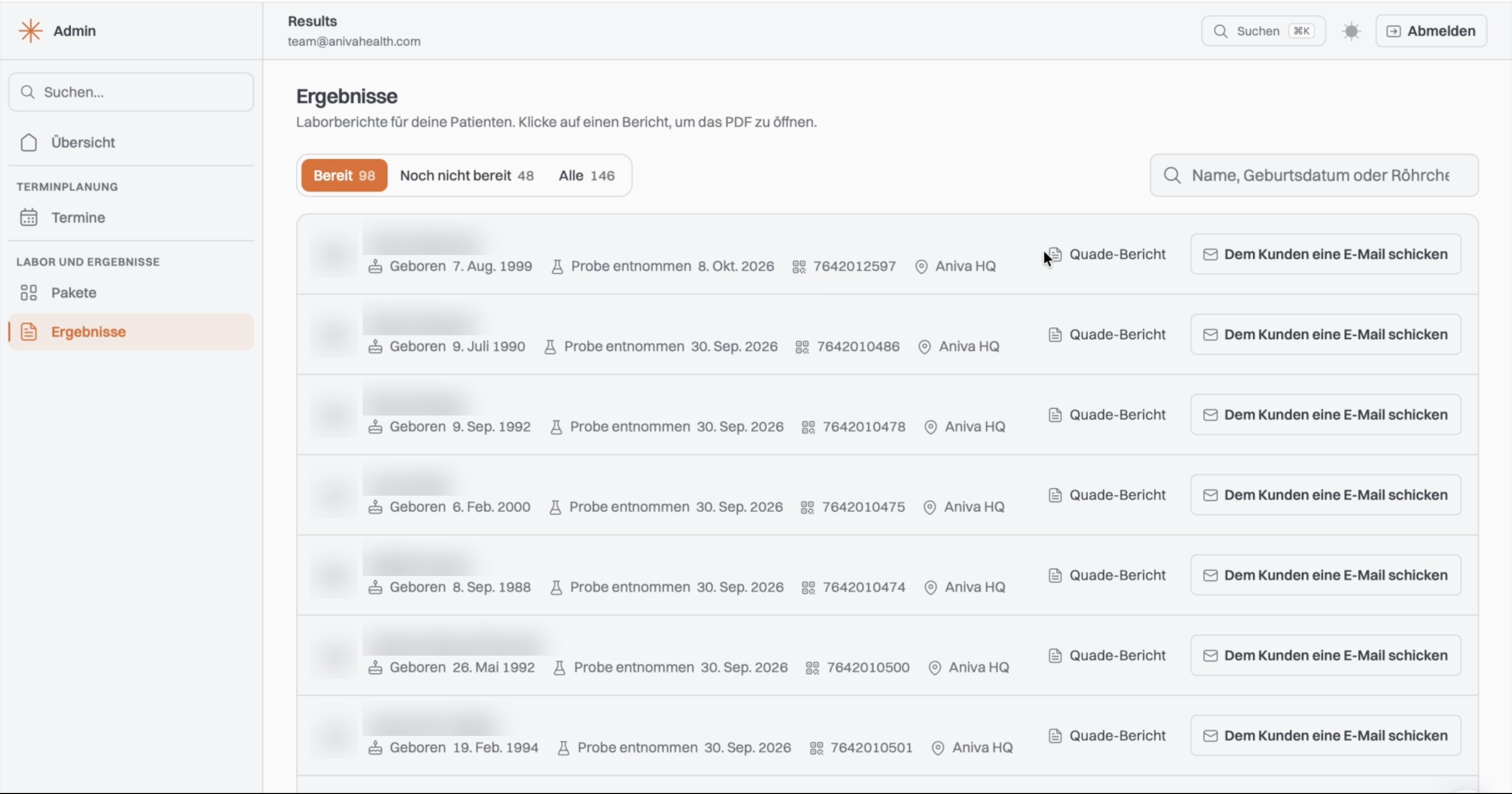
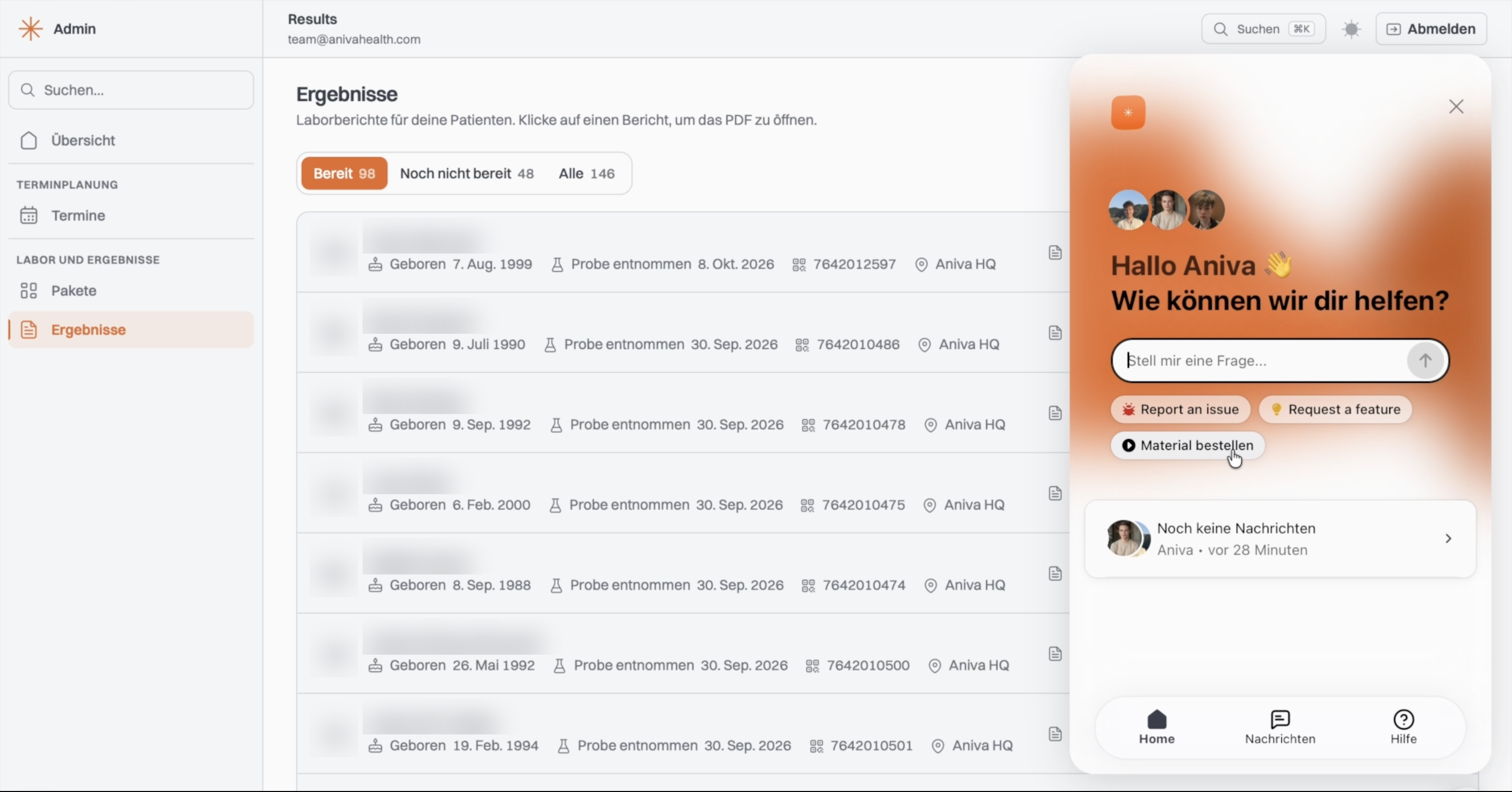
You'll find all reports on the left under Results. Every blood draw is listed there. Filter with the tabs Ready, Not ready yet and All; the search finds a customer by name, date of birth or tube barcode. The lab report button opens the PDF.
Discussing the report with the customer: As standard, the customer comes back to the pharmacy for the report. You go through the values with them and advise them with the numbers on the table – that's exactly what the test is for.
The report is usually ready 3 to 5 days at most after the draw. Until then the appointment shows under “Not ready yet” – that's normal. If you switched on the email notification in step 7, you'll get an email as soon as all values are in. If nothing has arrived after 5 days, write to us via the chat in the admin panel.
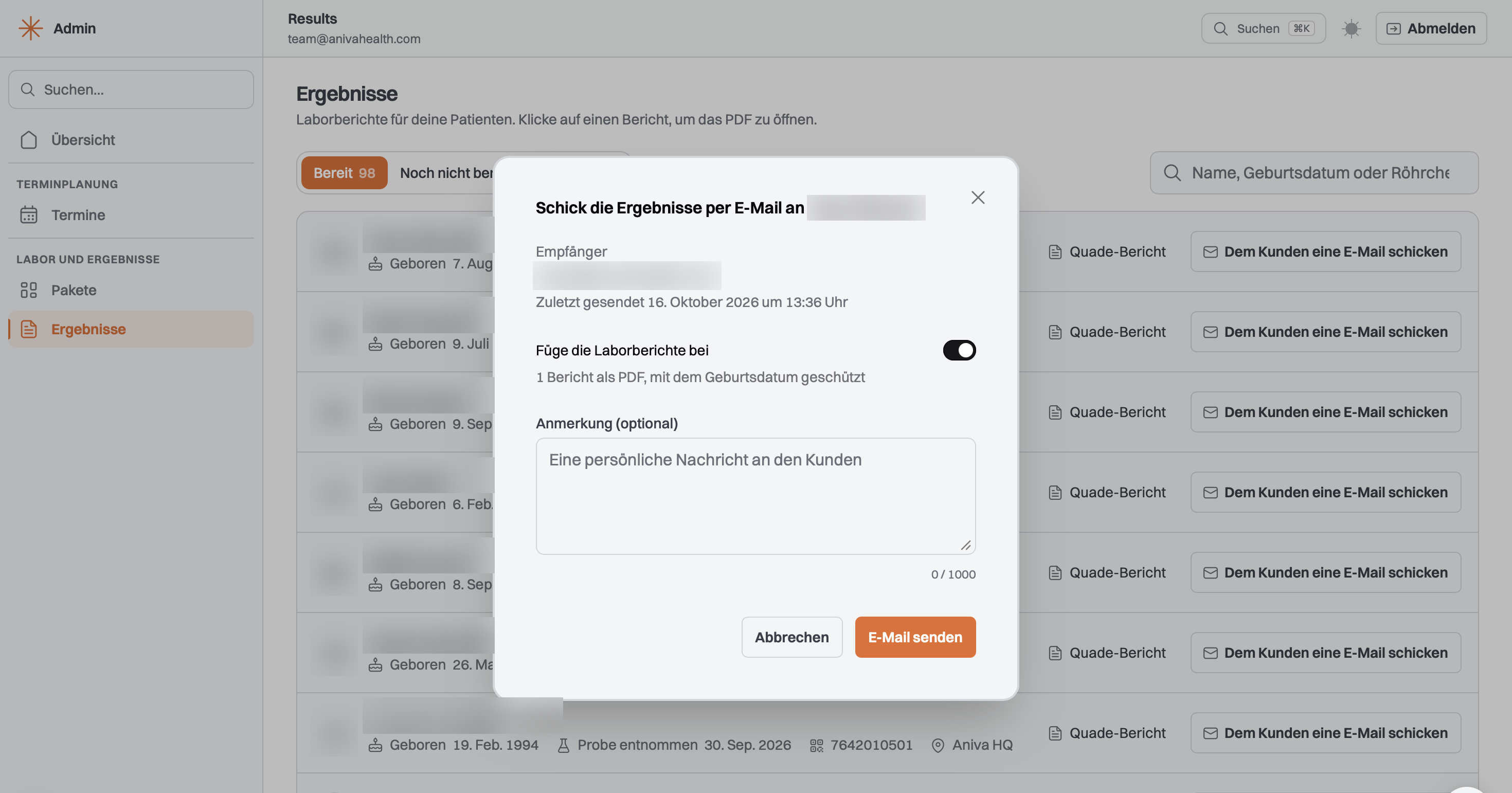
If the customer insists on getting the report by email: under Results, click the button to email the customer. The email goes to the address in the patient profile (step 4). Leave the option to attach the lab reports switched on, add a note if you like and send it. The PDF is protected with the customer's date of birth (DDMMYYYY, e.g. 05031980) – best tell them right away.
Tasso devices, tubes, shipping pouches: click the chat icon in the bottom right and choose “Material bestellen” (order material). No minimum quantity.
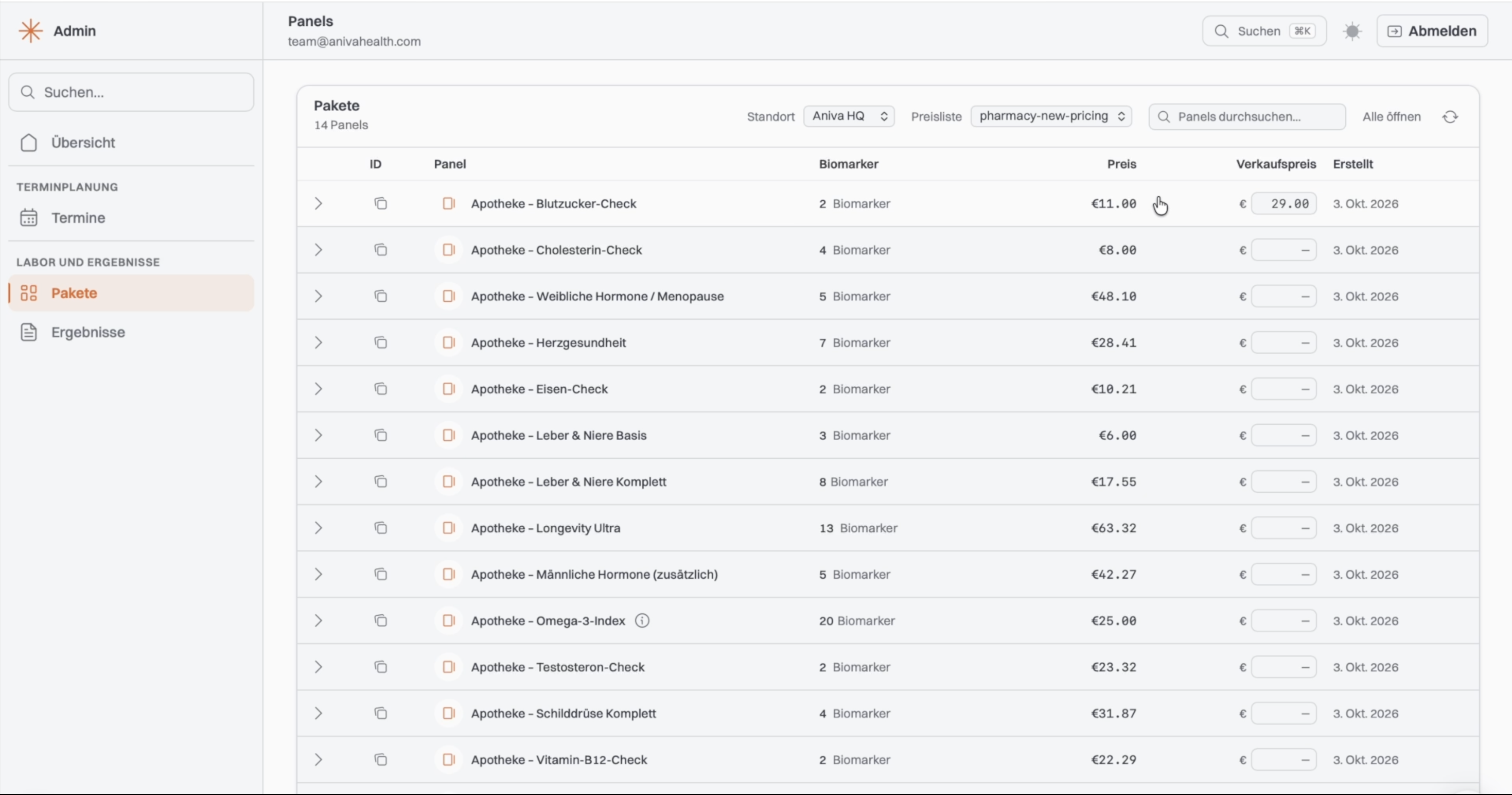
On the left under the panels page, enter in the retail price column what you sell each panel for. The prices then also appear on anivahealth.com, where your pharmacy is listed as a location. What we charge you doesn't change.
Questions about the admin panel? Those go through the same chat – the chat icon in the bottom right.
Next in the track
Billing: when and how we invoice
Once a month, in arrears – and a test is only invoiced once every lab report for it has arrived.